Roblox Parental Controls: How to Set Them Up (2026 Guide)
Set up Roblox parental controls in about 15 minutes. Every setting that matters, in order, plus the device-level lock a kid cannot toggle off. Real 2026 steps.

AJ Campos · Co-founder & CEO
· 8 min read
Third-party lab testing found Roblox's age-estimation model is off by about 1.4 years on average for users under 18 (Biometric Update). Their number, tested on kids who actually get scanned. It says nothing about the nine-year-old who defeats the whole system by typing a fake birthday at signup.
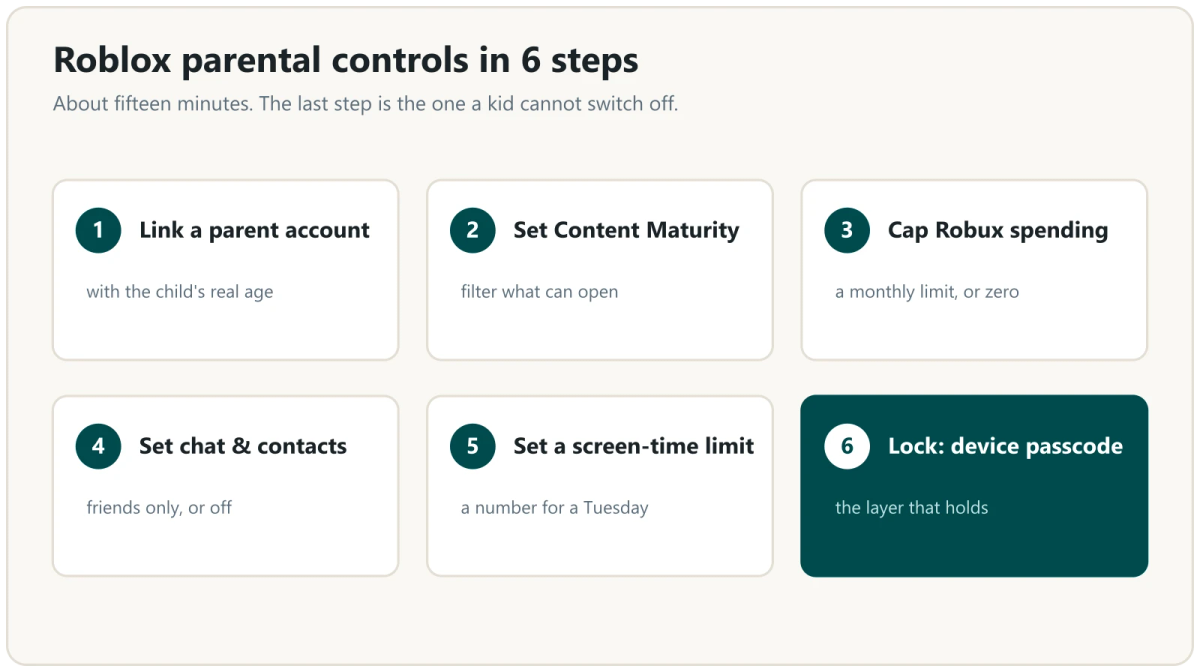
So let us be precise about what Roblox parental controls actually do, and set up the ones that hold. You can lock most of this down in about fifteen minutes. Below is every control that matters, in order, ending with the one setting a kid cannot turn off from inside the app.
What Roblox parental controls actually do (the honest version)
Roblox rebuilt its parental controls in 2025 and 2026. Parents now manage settings from their own linked account instead of a single in-app PIN, and since January 2026 an age check is required before a user can access chat (Roblox Newsroom).
That is real progress for the accounts where the real age is on file. It does far less for the account your kid registered with a fake birthday, where the gates are already open.
Age estimation is a floor. A kid can enter an adult birthdate and land in an adult-tier account from minute one, which means the chat age check is already cleared. A kid can make a second account you never see. And kids routinely search how to change their age or turn controls off. We wrote about the platform's broader risks in our pillar, is Roblox safe for kids. This guide is the wall you build on top.
The controls that genuinely hold are two: you setting up the account with your child's real age, and a device-level lock sitting above Roblox that the app cannot override. Everything else is the middle.
Step 1: Link a parent account with the child's real age
This is the load-bearing step. Get it right and the rest sticks.
Create your own Roblox account, verify that you are an adult, then link it to your child's account. Roblox gives you two paths (Roblox Support):
- On your child's device, open their Settings, go to Parental Controls, add a parent, and confirm with your email.
- From your own account dashboard (your roblox parental controls login), send a link request using your child's username or email.
When you set up the child's account, use the real birthday. Roblox age verification for parents can run through facial age estimation, a government ID, or a credit card. The real age drives every sensible default: content, chat, and which age-based tier your kid gets.
One catch. Linked parents can update a child's birthday only once, and once an age is ID-verified it locks (Roblox Support). Enter the truth the first time.
If your child already made this account themselves, assume the birthday is wrong. Because Roblox lets you change it only once and then locks it, the cleaner fix is often to delete that account and create a fresh one you control from minute one. Do not inherit an account you cannot trust the age on.
Step 2: Set Content Maturity
From your parent dashboard, set the Content Maturity level. This filters which experiences your child can open.
Roblox is adopting the IARC framework, which brings region-specific ratings like ESRB in the US and PEGI in Europe and the UK, rolling out starting later in 2026. Until then you set the cap with Roblox's own labels: Minimal, Mild, Moderate, and Restricted (17+). For a kid you are choosing among the first three. Pick the level that matches your child, not the level that keeps them quiet.
Account tier does some of this automatically, but only if the age is real. A Roblox Kids account (ages 5 to 8) is limited to games rated Minimal or Mild. A Roblox Select account (ages 9 to 15) can access up to Moderate. Both cap access on their own, and you can still block individual games. A kid who aged themselves up out of those tiers at signup gets none of these defaults, which is the whole reason Step 1 and Step 6 exist.
Step 3: Cap Robux spending (set a spending limit)
Does Roblox have parental controls for money. Yes, and it is the control that quietly matters most, because the failure mode is a surprise charge.
Set a Roblox Robux spending limit from your dashboard. You can set a monthly cap, and you can set it to zero to disable purchases entirely (Roblox Support). Turn on the email notifications so monthly spend is not a surprise. Zero is a valid number.
One gap to know: the spending limit does not cover Robux redeemed from gift cards, and it may not apply on some consoles. If a card shows up in a birthday envelope, that is a separate door.
Step 4: Set a Roblox screen time limit
Set a Roblox screen time limit from the parent dashboard. You choose the daily allowance and Roblox enforces it inside the app.
Pick a number you can live with on a Tuesday, not a fantasy number for a calm Sunday. If you want a framework for choosing that number without guilt, we have one here: how much screen time for kids. The limit only works if you are not renegotiating it nightly.
Step 5: Set chat and communication
Decide who your child can talk to. Options range from no chat, to friends only, to broader settings that unlock at older ages. On Kids accounts communication is off by default; on Select accounts you manage it directly through age 15.
Since January 2026, chat requires an age check first. But remember Step 1. If your kid registered with a fake adult birthday, they have already cleared that gate, and the limits meant to keep adults away from children do not apply the way you think. The age check only holds when the real age is on the account, which is why you setting it up beats any in-app toggle.
Start tight. Loosening later is one tap. You cannot un-see what open chat let through.
Step 6: Lock it. Device passcode first, Parent PIN second.
This is the only lock a kid cannot reach from inside the app.
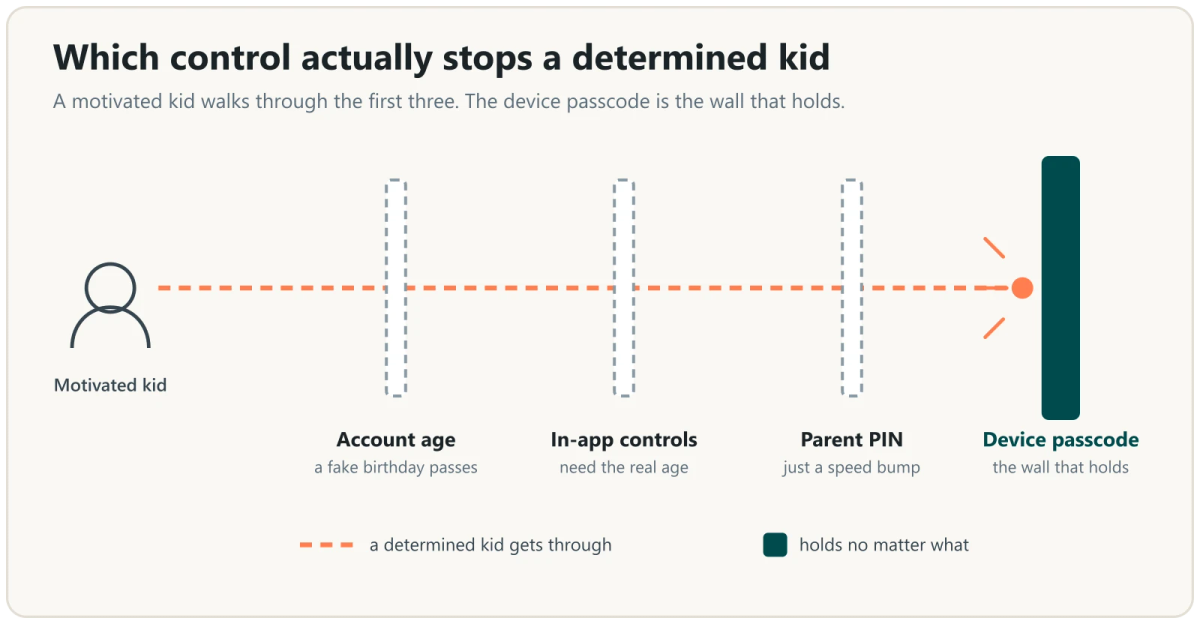
First, the one that actually holds: put a device-level lock above Roblox. This is an operating-system passcode your kid does not know. It cannot be toggled from inside Roblox, because it sits outside Roblox. If your child deletes and reinstalls the app, or spins up a second account, the OS-level time and content limits still apply to the device.
- iPhone / iPad: Screen Time, secured with a Screen Time passcode · App time limits, downloads, content ratings, purchases
- Android: Google Family Link · Daily limits, app approvals, purchase approvals
- Xbox: Microsoft Family Safety · Screen time, spending, age-based content
- PlayStation: Family Management, PS5 parental controls · Play time, spending limits, communication
- Nintendo Switch: Nintendo Switch Parental Controls app · Play-time alarms, software restrictions by age
Apple and Google both document these controls in plain language (Apple Screen Time, Google Family Link). Set the passcode to something your kid has not watched you type.
Second, set the Parent PIN. It is a speed bump, not a lock. Kids watch you type it, and there is real search traffic for resetting it without the PIN. Treat it as the inner layer that keeps a curious kid out of the settings menu. The device passcode above is the one that survives everything else.
What kids will actually try
Kids try three things. Each has a specific countermeasure.
- Fake age at signup. The most common move. Solved only by you setting up the account with the real birthday in Step 1.
- A secret second account. Kids make accounts you do not know exist. The device-level lock in Step 6 is what catches this, because it limits the device regardless of which account is signed in.
- Turning controls off. The Parent PIN slows changes inside the app. The device passcode blocks the workaround. Together they close the loop that either one leaves open.
The pattern is simple. In-app controls handle the account. The device lock handles the kid.
Which control stops which problem
- Real age at account link: Adult-tier access from a fake birthday
- Content Maturity: Age-inappropriate experiences
- Robux spending limit: Surprise charges, pressure to spend
- Chat and communication: Contact from strangers
- Screen-time limit: Sessions that never end
- Device-level passcode: Second accounts, reinstalls, controls being switched off
Not sure a specific game is okay for your kid? Our free decoder gives you a plain-English read on any Roblox experience, without you having to play it at midnight. Get early access here.
FAQ
Does Roblox have parental controls?
Yes. Content maturity, spending limits, screen time, and communication, all managed from a linked parent account. They are meaningfully better than they were in 2024. They still work best with a device-level lock behind them.
How do I access the parent dashboard (my roblox parental controls login)?
Sign in to your own linked adult account and open the parental controls section from your account settings. That linked account is the dashboard. If you have not linked yet, start with Step 1.
How do I change my child's age on Roblox?
A linked parent can update the birthday once, and it locks after ID verification. If the account was self-registered with a fake adult age, that one-time change may not be enough. Deleting and recreating the account under your control is often cleaner than fighting the lock.
Can my kid turn the controls off?
Inside the app, the Parent PIN slows them down, but it is only a speed bump. A determined kid can look up age changes or make a second account. That is exactly why the device-level passcode matters. It is the layer they cannot reach.
The fifteen minutes is the easy part
You built the wall. The harder part is the daily one: rewarding the good screen time instead of only policing the bad. If you want games to work for you at home, start here: why games are addictive, and how to use it for good.
We are building Chore Battles for exactly that. Chores your kid actually wants to finish, no ads pointed at children, waitlist only.
Join the Chore Battles waitlist.
A device passcode survives app deletion, reinstall, and every second account your kid can dream up. No setting inside Roblox can say that.
Chore Battles
A chore tracker that runs like a game — creatures that grow, a weekly family boss, and a leaderboard that resets every Monday. Free to download.
Join the waitlist